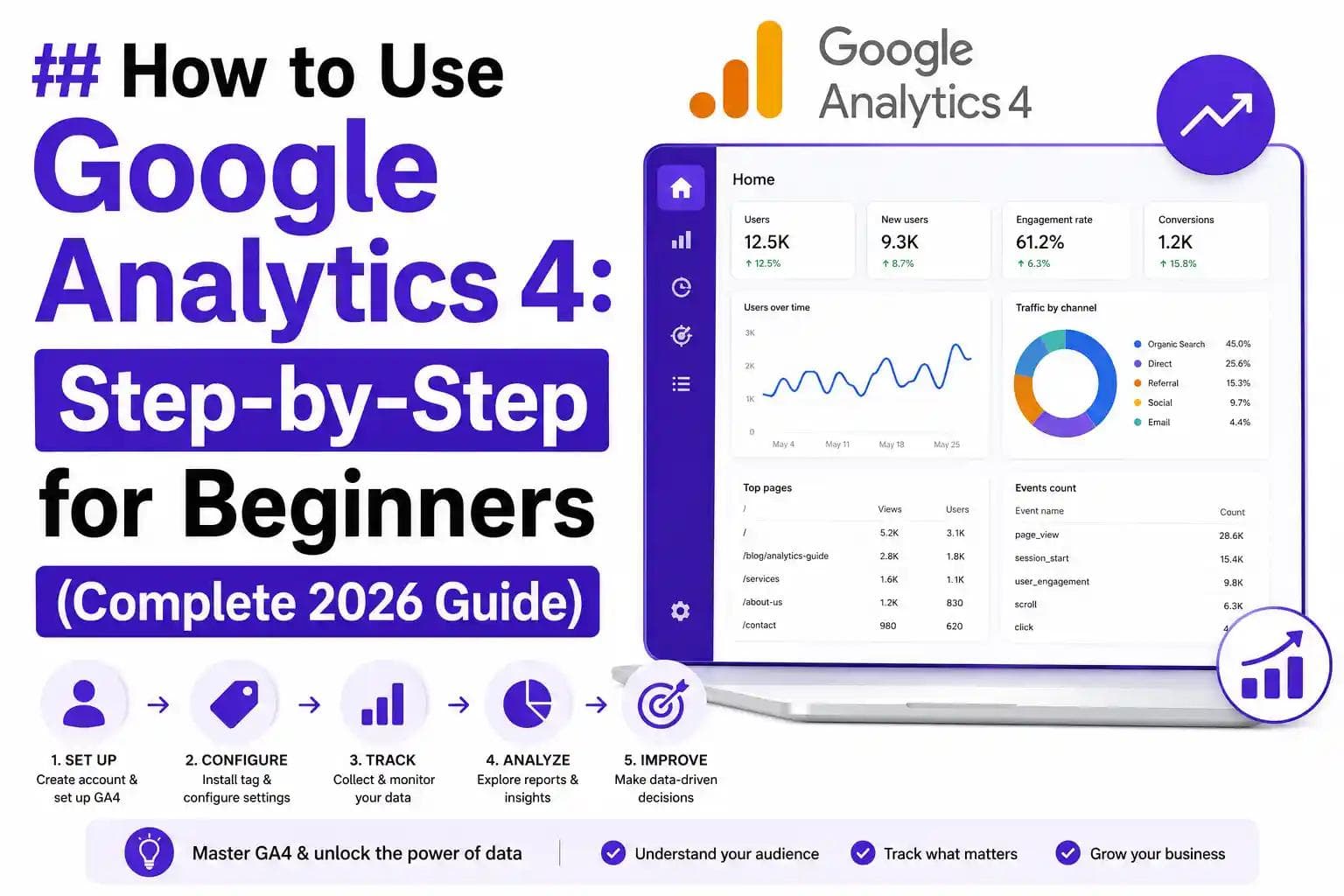
If you have ever wondered where your website visitors are coming from, what they do on your site, or why some pages perform better than others — Google Analytics 4 is the tool that answers all of those questions. Whether you are a blogger, a small business owner, a freelancer, or a digital marketing student in Pakistan, understanding GA4 is no longer optional. It is a core skill that every person working online needs to master.
This complete GA4 tutorial for beginners will walk you through everything — from setting up your account to reading your first reports — in plain, simple language. No jargon. No confusion. Just a clear, step-by-step Google Analytics 4 guide that actually makes sense.
What Is Google Analytics 4?
Google Analytics 4 — commonly called GA4 — is Google's latest and most advanced web analytics platform. It replaced the older Universal Analytics (UA) in July 2023 and is now the default analytics tool for every website owner using Google's free tracking service.
So what is Google Analytics 4 exactly? In simple terms, it is a free tool that tracks and reports on how people find your website and what they do once they arrive. It tells you how many visitors you got, which country they came from, which pages they read, how long they stayed, and whether they completed any actions — like filling a form, clicking a button, or making a purchase.
GA4 is built around an event-based tracking model. Unlike the old Universal Analytics, which was built around sessions and pageviews, GA4 tracks individual user actions (called events) — making it far more flexible, accurate, and future-ready for a world moving beyond cookies.
If you are serious about SEO, digital marketing, or growing any kind of online business, GA4 is the foundation of your data strategy. And if you want to learn digital marketing the right way, IDTS Digital's complete digital marketing training covers GA4 as a core module. You can explore their Digital Marketing Services and Courses at IDTS Digital to see what is available.
GA4 vs Universal Analytics: What Changed and Why It Matters
One of the most common questions beginners ask is: what is the difference between GA4 and UA?
Here is a quick breakdown:
Universal Analytics (old):
- Tracked sessions and pageviews as the main unit of measurement
- Used third-party cookies heavily
- Did not track across devices well
- Stopped processing data in July 2023
Google Analytics 4 (new):
- Tracks events (any user interaction) as the core unit
- Works across web and mobile apps in one property
- Uses machine learning for smarter insights
- Privacy-first design — built for a cookieless future
- Free and available to everyone
The difference between GA4 and UA is significant enough that if you learned the old Google Analytics, you essentially need to start fresh. But the good news is that GA4 is actually more powerful once you understand it — and this guide will help you get there fast.
Why You Need to Learn GA4 in 2026 (Especially in Pakistan)
Pakistan's digital economy is growing at a rapid pace. Freelancers, agencies, ecommerce sellers, YouTubers, and small businesses are all going online. But most of them make one critical mistake: they operate without data.
Learning Google Analytics 4 in Pakistan is one of the highest-ROI skills you can develop right now because:
- Every client — local or international — wants to know their website performance
- GA4 knowledge makes you a stronger SEO specialist, digital marketer, and web developer
- Freelancers on Fiverr and Upwork earn significantly more when they can offer analytics auditing and reporting as a service
- Businesses in Islamabad, Lahore, and Karachi are actively looking for people who understand web analytics
If you want to build a career or freelancing business in digital marketing, learning GA4 is not optional. It is the baseline. IDTS Digital offers a Best Digital Marketing Course in Pakistan that includes practical GA4 training for beginners — which is exactly the kind of hands-on learning that helps you get hired or get clients faster.
Step 1 — Create Your Google Analytics 4 Account
Let's get into the practical part. Here is how to set up Google Analytics 4 for your website from scratch.
What you need before you start:
- A Google account (Gmail)
- A website or app you want to track
- Access to your website's code or CMS (like WordPress)
How to create your GA4 account:
Go to analytics.google.com and sign in with your Google account. Click "Start measuring." You will be asked to enter an account name — this is usually your business or brand name. One Google Analytics account can hold multiple properties, so name it something you will recognize.
Next, you will be asked to create a property. A property in GA4 represents your website or app. Enter your website name, select your reporting time zone (Pakistan Standard Time, UTC+5), and choose your currency (PKR if you are based in Pakistan).
After setting up the property, Google will ask you about your business. Select your industry category and company size. This helps Google customize some default reports for you.
Step 2 — Set Up a Data Stream
Once your property is created, you need to connect it to your website. This is done through what GA4 calls a data stream.
Click "Add data stream" and choose "Web" (unless you are tracking a mobile app, in which case choose iOS or Android).
Enter your website URL and give the stream a name. Click "Create stream."
GA4 will now generate a Measurement ID — it looks like G-XXXXXXXXXX. This is your unique tracking code. You need to add this to your website so GA4 can start collecting data.
How to add GA4 to a WordPress website:
If your site runs on WordPress (which most sites in Pakistan do), you have a few options:
Option 1: Use the Google Site Kit plugin. Install it from the WordPress plugin directory, connect your Google account, and it will automatically add your GA4 tracking code to every page.
Option 2: Use a plugin like MonsterInsights or Header Footer Code Manager to paste your GA4 tracking snippet into the site's header section.
Option 3: Use Google Tag Manager. Install GTM on your site first, then add GA4 as a tag inside GTM. This is the professional method used by most SEO and analytics experts.
Once your tracking code is live, go back to GA4 and check the real-time report to confirm data is flowing. If you see at least one active user (yourself), the setup is working.
For a deeper look at how website setup connects to your broader digital strategy, read IDTS Digital's guide on Website Development in Pakistan 2026 — it covers the technical side of getting your site analytics-ready from day one.
Step 3 — Understand the GA4 Dashboard
When you first log into GA4, the dashboard can look overwhelming. Let's break it down so it makes sense.
The left-hand navigation has these main sections:
Home — A summary overview showing your most important metrics at a glance: users, new users, average engagement time, and revenue (if you have ecommerce tracking).
Reports — This is where the real data lives. Reports are divided into:
- Realtime: See who is on your site right now, where they came from, and what they are doing
- Acquisition: Understand how people find your website (organic search, social, direct, referral, paid)
- Engagement: See which pages people read, how long they stay, and which events they trigger
- Monetization: Track ecommerce revenue and in-app purchases
- Retention: Understand how many users come back after their first visit
- Demographics: See age, gender, location, language, and interests of your audience
Explore — Build custom reports, funnels, cohort analyses, and user path reports. This is the advanced section for deeper analysis.
Advertising — Connect your GA4 to Google Ads and see how your paid campaigns are performing alongside organic data.
Configure — Set up events, conversions, audiences, and custom dimensions.
The most important thing to understand as a beginner is that GA4 uses events for everything. Every time a user does something on your site — loads a page, scrolls, clicks a link, watches a video, submits a form — GA4 can record that as an event. And certain events can be marked as conversions, which are the actions you care most about.
Step 4 — Read Your GA4 Reports Like a Pro
Understanding how to read GA4 reports is where beginners usually get stuck. Let's walk through the most important ones.
Acquisition Reports
Go to Reports → Acquisition → Traffic Acquisition. This report shows you where your visitors are coming from. The main channels you will see are:
- Organic Search: People who found you through Google or Bing
- Direct: People who typed your URL directly or used a bookmark
- Organic Social: Visitors from Facebook, Instagram, LinkedIn, etc.
- Referral: Visitors who clicked a link on another website
- Paid Search: Visitors from Google Ads campaigns
For anyone doing SEO in Pakistan, the organic search channel is the most important one to grow. If you want to understand how to grow that number, read the SEO 2026 Google Ranking Guide at IDTS Digital — it goes deep on the strategies that actually move rankings in 2026.
Engagement Reports
Go to Reports → Engagement → Pages and Screens. This shows you which pages on your website get the most views, how long users spend on each page, and your engagement rate.
Engagement rate is one of the key new metrics in GA4. It replaced the old "bounce rate" concept. An engaged session is one where the user spent at least 10 seconds on your site, viewed at least 2 pages, or triggered a conversion. A high engagement rate means people find your content valuable.
Realtime Report
Go to Reports → Realtime. This shows you how many people are on your website right now. Use this whenever you publish a new article, run a social media post, or send an email campaign — you can watch the traffic spike in real time.
Step 5 — Set Up Events and Conversions
This is where GA4 gets powerful. Events are any interactions users have with your site. GA4 automatically tracks many events out of the box — called enhanced measurement events — including:
- page_view (every page load)
- scroll (when user scrolls 90% down a page)
- click (outbound link clicks)
- file_download (when someone downloads a PDF or file)
- video_start / video_progress / video_complete (for YouTube embeds)
- form_start / form_submit (if using some form plugins)
To see your events, go to Configure → Events. You will see a list of all events GA4 is recording.
How to set up conversions in GA4:
A conversion (previously called a goal in Universal Analytics) is an event that represents a meaningful action on your website. For example:
- A contact form submission
- A purchase completion
- A phone number click
- A specific page visit (like a /thank-you page)
To mark an event as a conversion, find it in your Events list and toggle the "Mark as conversion" switch. That event will now appear in your Conversions report and be tracked as a key business metric.
How to create custom events in GA4:
If GA4 is not automatically tracking an event you care about, you can create a custom event. Go to Configure → Events → Create Event. You can create new events based on conditions — for example, creating a "booking_click" event that fires every time someone clicks your "Book a Call" button.
For businesses running Google Ads alongside GA4, linking the two accounts unlocks even more powerful data. IDTS Digital's comparison of Google Ads vs Facebook Ads in 2026 explains exactly how paid and organic data work together in your analytics dashboard.
Step 6 — Link GA4 with Google Search Console
One of the most powerful integrations you can make as a beginner is linking Google Analytics 4 with Google Search Console. This brings your keyword and search performance data directly into GA4.
How to link GA4 to Google Search Console:
- First, make sure your website is verified in Google Search Console
- In GA4, go to Admin (the gear icon at the bottom left)
- Under Property settings, find "Search Console links"
- Click "Link" and select your Search Console property
- Choose your data stream and confirm
Once linked, you will find a new "Search Console" section under Reports → Acquisition. This shows you exactly which Google search queries are bringing people to your site, your average ranking position, click-through rate, and impressions.
This combination — GA4 plus Search Console — is the complete beginner SEO setup. Understanding this data is exactly what IDTS Digital teaches in their Digital Marketing Guide Pakistan 2026.
Step 7 — Set Up GA4 Audiences
Audiences in GA4 are segments of users that you define based on behavior, demographics, or events. You can use audiences for:
- Retargeting campaigns in Google Ads
- Understanding different groups of users
- Creating personalized experiences
To create an audience, go to Configure → Audiences → New Audience. You can use GA4's pre-built audience templates or build your own using conditions.
For example, you could create an audience of users who:
- Visited your pricing page but did not submit the contact form
- Came from organic search in Pakistan
- Watched more than 50% of a video on your site
These audiences can then be sent directly to Google Ads for retargeting — a powerful strategy for any business running paid campaigns alongside organic SEO.
Step 8 — Use the Explore Section for Advanced Analysis
The Explore section of GA4 is where you go when the standard reports are not enough. It is one of the most powerful features in GA4 and is largely unknown to beginners.
Funnel Exploration: Visualize how users move through a sequence of steps on your website — for example, Homepage → Product Page → Add to Cart → Checkout → Purchase. You can see exactly where people drop off in the funnel.
Path Exploration: See the actual paths users take through your site. What page do they visit after reading your blog post? Where do they go after landing on your homepage?
Cohort Exploration: Group users by when they first visited your site (their acquisition date) and track how their behavior changes over time. This is especially useful for understanding user retention and loyalty.
Segment Overlap: Compare different segments of your audience to find insights. For example, do users who come from organic search have higher engagement than those from social media?
The Explore section is used by professional data analysts and advanced digital marketers. If you want to get into data analytics as a career, this is where you start building expertise. IDTS Digital has a detailed resource on Data Analytics Career in Pakistan 2026 that shows you the exact career paths available once you master tools like GA4.
Step 9 — GA4 for Ecommerce Tracking
If you run an online store — whether on Shopify, WooCommerce, or a custom site — GA4's ecommerce tracking is essential. It gives you data on:
- Total revenue
- Transactions
- Average order value
- Product performance (which products sell most)
- Cart abandonment rate
- Checkout funnel performance
For WooCommerce (WordPress), install the official Google for WooCommerce plugin and connect it to your GA4 property. For Shopify, use the Google & YouTube app from the Shopify App Store.
Once ecommerce tracking is active, you will find your data under Reports → Monetization. The ecommerce purchases report shows you exactly which products are generating revenue and which ones need attention.
If you are trying to decide between Shopify and WooCommerce for your store setup, IDTS Digital's Shopify vs WooCommerce Comparison 2026 breaks down which platform works better for Pakistani sellers in terms of analytics integration.
Step 10 — Use GA4 Data to Improve Your SEO
This is where everything comes together. GA4 is not just a reporting tool — it is an SEO improvement tool when used correctly.
Find your best-performing pages: Go to Reports → Engagement → Pages and Screens. Sort by "Views" and identify your top 10 pages. These are your strongest assets. Update them regularly, add internal links to newer content, and make sure they are fully optimized.
Find your worst-performing pages: Sort the same report by "Engagement Rate" from lowest to highest. Pages with low engagement rate need better content, clearer CTAs, or improved user experience.
Identify drop-off points: Use funnel exploration to find where users leave your site. If 80% of visitors leave on your pricing page without contacting you, that page needs improvement.
Track organic traffic growth: Use the Search Console integration to track whether your target keywords are gaining or losing ranking positions month over month. This helps you measure whether your SEO work is paying off.
Monitor page speed impact: Slow pages hurt both SEO rankings and user engagement. If certain pages have high drop-off rates, check their load speed. For practical guidance on speed optimization, read the IDTS Digital guide on WordPress Speed Optimization 2026.
GA4 for Local SEO in Pakistan
If you run a local business in Islamabad, Lahore, or Karachi, GA4 can be set up to track local-specific behavior. You can filter your reports by city or region to see how many of your visitors are coming from specific cities in Pakistan.
Go to Reports → Demographics → Audiences, and use the "City" dimension to filter by Islamabad, Lahore, Karachi, Rawalpindi, Faisalabad, or Multan. This shows you where your local traffic is concentrated and helps you target your local SEO efforts more effectively.
Combining GA4 with a strong local SEO strategy is one of the fastest ways for Pakistani small businesses to grow online. IDTS Digital's Local SEO Guide for Small Business 2026 walks you through the exact process step by step.
GA4 and Social Media Marketing
GA4 makes it easy to track the ROI of your social media efforts. Under Reports → Acquisition → Traffic Acquisition, filter by "Organic Social" to see which social media platforms are sending you the most visitors.
You can also use UTM parameters — special tracking codes added to your URLs — to track specific campaigns, posts, or ads. For example, if you share a blog post on Instagram, you can add a UTM tag to the URL so GA4 shows you exactly how much traffic came from that specific post.
For businesses investing in social media marketing, this kind of tracking is essential. IDTS Digital's guide on Social Media Marketing Strategies for Small Business explains how to build a social strategy that is actually measurable — using GA4 as your reporting backbone.
How to Learn GA4 for Free in Pakistan
There are several great free resources for learning Google Analytics 4 in Pakistan:
Google Analytics Academy — Google offers free official courses at skillshop.google.com. The "Google Analytics 4" course is free, beginner-friendly, and comes with a certificate upon completion. This is the most authoritative place to learn GA4 directly from Google.
YouTube tutorials in Urdu — Search for "GA4 tutorial in Urdu" or "Google Analytics 4 tutorial Urdu 2025" to find dozens of free walkthroughs in your language.
Google's GA4 demo account — Google provides a free demo account pre-loaded with real data from the Google Merchandise Store. You can explore every report and feature without needing your own website. Access it at analytics.google.com/analytics/web/demoAccount.
IDTS Digital Blog — IDTS Digital regularly publishes practical guides on SEO, digital marketing, and analytics tools specifically tailored for Pakistani learners and professionals. Visit the IDTS Digital Blog for free, up-to-date learning resources.
If you want structured, instructor-led training with hands-on practice and certification, IDTS Digital's professional courses are the best option in Pakistan. Their courses cover everything from GA4 basics to advanced conversion tracking — with real-world projects that prepare you for actual client work. You can see everything they offer at IDTS Digital's Course Page.
Career Opportunities After Learning GA4
Mastering Google Analytics 4 opens doors to multiple high-paying career paths:
SEO Specialist — Every SEO professional needs to use GA4 to measure organic traffic, track keyword performance, and prove ROI to clients. Learning GA4 is non-negotiable in this field.
Digital Marketing Manager — Marketing managers use GA4 to track campaign performance, measure conversion rates, and make data-driven budget decisions.
Data Analyst — GA4, combined with tools like Google Looker Studio (formerly Data Studio), forms the backbone of entry-level data analyst roles.
Freelancer on Fiverr/Upwork — Offering GA4 audit, setup, and reporting services is a high-demand freelancing niche. Many international clients pay $50–$200 per GA4 audit. If you want to start freelancing in Pakistan, read the IDTS Digital guide on How to Start Freelancing in Pakistan 2026.
E-commerce Analytics Consultant — As Pakistani ecommerce grows through platforms like Daraz and Shopify, businesses need people who can interpret their sales data and identify growth opportunities.
The scope of digital marketing in Pakistan is expanding rapidly, and GA4 expertise is one of the most valued skills in the entire ecosystem. If you are still deciding which direction to take, read IDTS Digital's comparison of Digital Marketing vs Traditional Marketing 2026 — it makes a strong case for why digital skills are the priority investment right now.
Common GA4 Mistakes Beginners Make (And How to Avoid Them)
Learning what not to do is just as important as learning what to do. Here are the most common mistakes beginners make with GA4:
1. Not setting up conversions. Without marking any events as conversions, GA4 is just showing you traffic data. Conversions tell you whether your traffic is actually working for your business goals.
2. Not linking Google Search Console. This integration is free and takes five minutes. Without it, you are missing half your SEO data.
3. Ignoring the Explore section. Most beginners only use the standard reports. The Explore section is where the real insights are.
4. Comparing GA4 data to old Universal Analytics. The two tools measure things differently. Direct comparison leads to wrong conclusions. Always analyze GA4 data on its own terms.
5. Not using UTM parameters for campaigns. If you are running ads, sending emails, or posting on social media without UTM tracking, you cannot accurately attribute traffic to the right source.
6. Setting up GA4 and never checking it. Analytics only helps if you use the data to make decisions. Set a weekly 30-minute analytics review as a habit.
GA4 Key Metrics Every Beginner Must Know
Here is a quick reference for the most important GA4 metrics and dimensions:
- Users — Total number of unique visitors to your site
- New Users — First-time visitors
- Sessions — Total number of visits (one user can have multiple sessions)
- Engaged Sessions — Sessions where the user was genuinely active (10+ seconds, 2+ pages, or triggered a conversion)
- Engagement Rate — Percentage of sessions that were engaged sessions
- Average Engagement Time — How long, on average, users actively interact with your site
- Events — Any tracked interaction (pageview, scroll, click, etc.)
- Conversions — Events you have marked as important business actions
- Revenue — Total ecommerce revenue (if ecommerce tracking is set up)
- Bounce Rate — In GA4, this is the inverse of engagement rate (sessions that were NOT engaged)
Frequently Asked Questions About Google Analytics 4
Is Google Analytics 4 free to use? Yes, GA4 is completely free for standard use. Google also offers GA4 360, a paid enterprise version with advanced features and higher data limits, but for most businesses and beginners, the free version is more than enough.
What replaced Universal Analytics? Google Analytics 4 replaced Universal Analytics. Google officially stopped processing data in Universal Analytics properties in July 2023. All new analytics properties created after that date automatically use GA4.
How do I install Google Analytics 4 on my site? Create a GA4 property at analytics.google.com, get your Measurement ID (G-XXXXXXXXXX), and add it to your website using Google Site Kit (for WordPress), Google Tag Manager, or by pasting the tracking code directly into your site's header section.
What is the difference between GA4 and Universal Analytics? GA4 is event-based (tracking individual user interactions), while Universal Analytics was session-based (tracking page views and sessions). GA4 works across web and mobile, uses machine learning, and is built for a future without third-party cookies. Universal Analytics is now retired.
How do I see traffic sources in GA4? Go to Reports → Acquisition → Traffic Acquisition. This report shows you all the channels bringing traffic to your site — organic search, social media, direct, referral, and paid — with engagement metrics for each.
Can beginners learn GA4 easily? Yes. GA4 is learner-friendly once you understand the core concepts of events, sessions, and conversions. Start with the free Google Analytics 4 course on Google's Skillshop, use the GA4 demo account for practice, and follow a structured course like the ones offered by IDTS Digital for hands-on learning.
What are events in Google Analytics 4? Events are any interactions a user has with your website or app — page views, scrolls, clicks, video plays, form submissions, and more. GA4 automatically tracks many events, and you can create custom events for any specific action that matters to your business.
How do I check bounce rate in GA4? In GA4, bounce rate is defined as the percentage of sessions that were NOT engaged sessions (i.e., the user left without spending 10+ seconds, viewing 2+ pages, or triggering a conversion). To see it, go to Reports → Engagement → Pages and Screens, click "Customize report," and add "Bounce rate" as a metric column.
How do I connect GA4 to Google Ads? In GA4, go to Admin → Property → Google Ads Links → Link. Select your Google Ads account and confirm. Once linked, you can see your ad campaign data alongside organic data, create audiences in GA4 and use them for remarketing, and import GA4 conversions into Google Ads for bidding optimization.
Is GA4 better than Universal Analytics? For most use cases in 2026, yes. GA4 is more accurate for cross-device tracking, more flexible with custom event tracking, more powerful for machine learning insights, and built for a privacy-first future. The main downside is the learning curve for people who were used to Universal Analytics.
Conclusion: Start Your GA4 Journey Today
Google Analytics 4 is the most important free tool on the internet for anyone who owns, manages, or markets a website. It shows you exactly where your traffic comes from, how users behave, and what is driving real results — so you can stop guessing and start making decisions based on data.
As a beginner, the most important thing is to start. Set up your GA4 account, connect it to your website, check your reports every week, and gradually explore the more advanced features as your confidence grows. The learning curve is real but it is manageable — especially with the right guidance.
If you are in Pakistan — whether in Islamabad, Lahore, Karachi, or anywhere else — and you want to build a real digital marketing career or grow your business online, learning GA4 is one of the highest-value investments you can make right now.
IDTS Digital (Institute of Digital Training & Services) offers professional, structured training in Google Analytics, SEO, digital marketing, and web analytics — specifically designed for Pakistani learners and professionals. Their courses combine theory with real-world practice so you graduate with skills that clients and employers actually pay for.
👉 Ready to take your skills to the next level? Explore Courses at IDTS Digital and enroll in the Advanced Digital Marketing Course today.
👉 Need professional SEO or digital marketing services for your business? Discover IDTS Digital's full range of services — from SEO and Google Analytics setup to complete digital marketing management.
👉 Looking for affordable web hosting to launch your website? Get a special discounted offer on domain and hosting through Hostinger Pakistan — one of the fastest and most reliable hosting providers available to Pakistani users.