







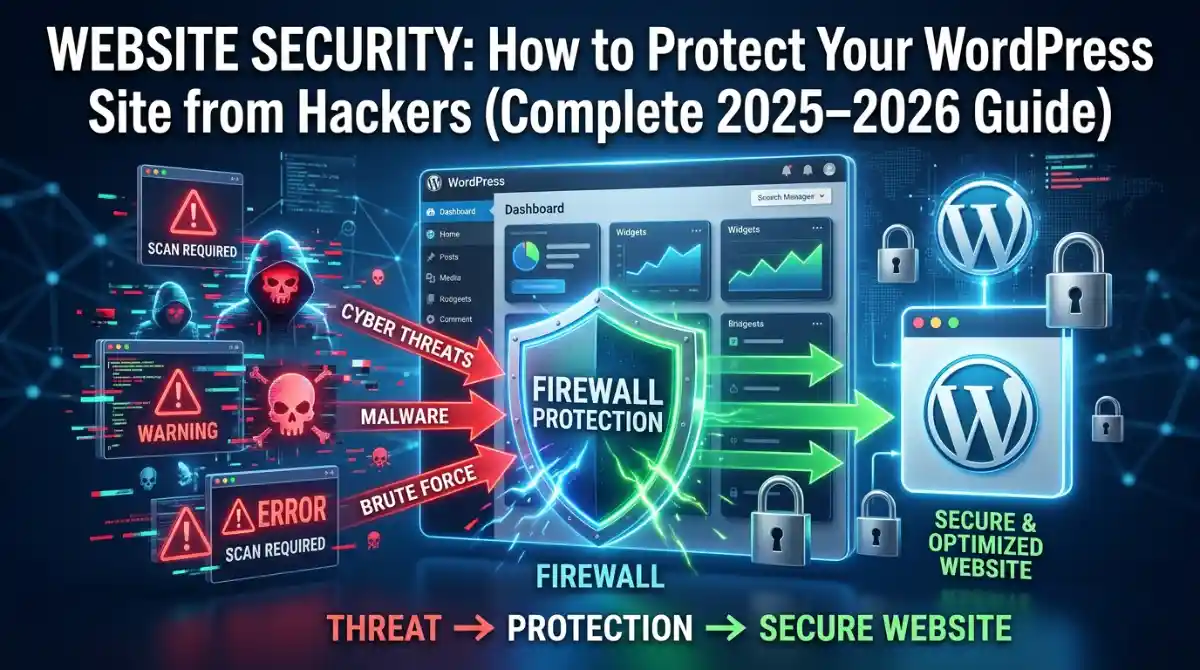
Every 39 seconds, a cyberattack happens somewhere on the internet. If your website runs on WordPress — and chances are it does, since WordPress powers over 43% of all websites globally — then you are a target. Not because you are special, but because hackers run automated bots that scan thousands of sites every single day looking for weak points.
The good news? Most WordPress sites get hacked not because of some sophisticated attack, but because of simple, preventable mistakes. Outdated plugins. Weak passwords. No SSL certificate. No firewall. Things you can fix today.
This complete WordPress security guide will walk you through everything — from basic hardening to advanced protection strategies — so you can sleep at night knowing your website is safe.
Why WordPress Sites Get Hacked: The Honest Truth
Before we dive into solutions, let’s talk about why WordPress is such a popular target.
WordPress is open-source. That means its code is publicly available. Hackers know exactly how the platform works, where the weak spots are, and how to exploit them. According to a Sucuri Security report, over 90% of hacked CMS websites in recent years were running WordPress — not because WordPress is poorly built, but because it is the most widely used platform in the world.
The most common causes of WordPress hacking include:
- Outdated WordPress core, themes, or plugins
- Weak or reused passwords on wp-admin
- Using “admin” as the default username
- No two-factor authentication enabled
- Cheap shared hosting with poor server-level security
- Nulled (pirated) themes and plugins with hidden malware
- No web application firewall in place
- XML-RPC left enabled (a frequent entry point for brute force attacks)
Understanding these vulnerabilities is step one. Now let’s fix them.
Step 1: Choose a Secure Hosting Provider
Your website security starts before you even install WordPress. Your hosting provider is the foundation of everything.
Cheap shared hosting often means your site sits on a server with hundreds of other sites. If one of those sites gets infected, yours can too — this is called cross-site contamination.
Look for a hosting provider that offers:
- Server-level firewalls and malware scanning
- Automatic daily backups
- Free SSL certificate (Let’s Encrypt or equivalent)
- PHP version control (always run PHP 8.1 or higher)
- Isolated hosting environments
Providers like SiteGround and Kinsta are well known for their managed WordPress security features. Kinsta, for example, runs on Google Cloud infrastructure with enterprise-grade firewalls and automatic malware detection built in.
If you are building or managing WordPress websites as a service, this also ties into your broader web development workflow. If you want to understand the technical side of how servers and WordPress interact, the Full Stack Web Development Roadmap at IDTS Digital is an excellent place to start.
Step 2: Install SSL Certificate — HTTPS Is Non-Negotiable
If your site still shows “http://” instead of “https://”, you have a serious problem.
An SSL certificate encrypts the data transmitted between your visitor’s browser and your web server. Without it, passwords, form submissions, and payment details can be intercepted by attackers in what is called a man-in-the-middle attack.
Beyond security, Google has confirmed that HTTPS is a ranking signal. Sites without SSL are marked “Not Secure” in Chrome, which destroys visitor trust instantly.
How to get SSL for WordPress:
- Most good hosting providers offer free SSL through Let’s Encrypt
- Cloudflare also offers a free flexible SSL layer
- Install the Really Simple SSL plugin to force HTTPS across your entire site
- Make sure your wp-config.php file forces SSL for the admin area
Once installed, use an online SSL checker tool to verify your certificate is valid and properly configured.
Step 3: Harden Your WordPress Login Page
The wp-admin login page is the most attacked page on any WordPress site. Bots run thousands of username and password combinations every minute — this is called a brute force attack.
Here is how to lock it down:
Change the default login URL. Plugins like WPS Hide Login let you move your login page from /wp-admin to something custom like /my-secret-login. Attackers cannot attack what they cannot find.
Change the admin username. Never use “admin” as your username. If your account still uses it, create a new administrator account with a different name and delete the old one.
Limit login attempts. A plugin like Limit Login Attempts Reloaded or the built-in feature in Wordfence will lock out an IP address after a certain number of failed login tries.
Enable two-factor authentication (2FA). This adds a second layer of verification — even if a hacker gets your password, they cannot log in without your phone or authenticator app. Plugins like WP 2FA or Google Authenticator make this easy to set up.
Add Google reCAPTCHA to your login form. This stops automated bots from even attempting to submit the login form.
Use a strong password. This sounds obvious, but it is still the most neglected part of WordPress security. Use a password manager and generate something like “X7!qpZ$2mKw#9Lv” rather than “wordpress123”. A strong password is your first real line of defense.
Step 4: Install a WordPress Security Plugin
You need a dedicated WordPress security plugin — this is not optional. Think of it as your site’s alarm system.
The top options in 2025–2026 are:
Wordfence Security — The most popular WordPress security plugin, with over 5 million active installs. It includes a web application firewall, malware scanner, login security, live traffic monitoring, and IP blocking. The free version is powerful enough for most small to medium sites.
Sucuri Security — Sucuri is both a plugin and a cloud-based security service. Their website firewall (WAF) sits between your site and all incoming traffic, blocking threats before they even reach your server. Sucuri is excellent for sites that have already been hacked and need a deep clean.
iThemes Security — Formerly Better WP Security. Offers over 30 ways to secure and protect WordPress including file change detection, Google reCAPTCHA, two-factor authentication, and strong password enforcement.
All In One WP Security & Firewall — A free, beginner-friendly option with a visual security strength meter. Great for non-technical users who want solid protection without complexity.
WP Cerber Security — Less mainstream but very powerful, especially for blocking spam and bots.
For most site owners, Wordfence (free) combined with Cloudflare (free tier) gives you excellent protection without spending a rupee.
Step 5: Set Up a Web Application Firewall (WAF)
A web application firewall filters all incoming traffic to your site and blocks malicious requests before they cause damage. It protects against SQL injection, cross-site scripting (XSS), DDoS attacks, and other OWASP Top 10 vulnerabilities.
Cloudflare is the most accessible option for most website owners. Even the free plan gives you a global content delivery network (CDN), basic DDoS protection, and a firewall. Simply point your domain’s nameservers to Cloudflare and your traffic is automatically routed through their security layer.
For more robust protection, Sucuri’s cloud WAF is a paid option worth considering for business-critical websites or WooCommerce stores handling payments.
Understanding how network-level threats work is deeply connected to cybersecurity fundamentals. To get a stronger foundation on this topic, read the guide on Network Security Fundamentals for Business at IDTS Digital — it covers firewalls, threat detection, and how to think about security from an infrastructure perspective.
Step 6: Keep Everything Updated — Always
This is the single most important ongoing WordPress security practice, yet it is the one most people ignore.
Every plugin, theme, and WordPress core version you run is a potential attack vector if it is outdated. When a security vulnerability is discovered in a popular plugin, hackers immediately begin scanning for sites still running the old version.
WordPress security best practices for updates:
- Enable automatic updates for minor WordPress core releases
- Manually review and apply major WordPress updates promptly
- Update all plugins and themes at least once a week
- Delete any plugins or themes you are not actively using — inactive does not mean safe
- Never run nulled or pirated themes/plugins — they almost always contain backdoors
You can use a plugin like ManageWP or MainWP to manage updates across multiple WordPress sites from a single dashboard.
Step 7: Harden Your wp-config.php and File Permissions
The wp-config.php file is the most sensitive file on your WordPress installation. It contains your database credentials, security keys, and configuration settings. Protecting it is critical.
Add this line to your .htaccess file to block all external access to wp-config.php:
<files wp-config.php>
order allow,deny
deny from all
</files>
Also change its file permissions to 400 or 440 via your cPanel or FTP client.
For file permissions across your WordPress installation, the correct settings are:
- WordPress folders: 755
- WordPress files: 644
- wp-config.php: 400
You should also disable file editing from the WordPress dashboard by adding this line to wp-config.php:
define('DISALLOW_FILE_EDIT', true);
This means even if an attacker gets into your admin panel, they cannot inject malicious code directly into your theme files.
Step 8: Disable XML-RPC If You Do Not Need It
XML-RPC is a WordPress feature that allows remote connections to your site. It was originally built for mobile apps and services like Jetpack. The problem is that it is a common entry point for brute force attacks because it allows unlimited login attempts in a single request — bypassing normal lockout rules.
Unless you specifically need XML-RPC (for example, if you post from the WordPress mobile app), disable it completely. You can do this through your .htaccess file or using a plugin like Disable XML-RPC.
Step 9: Set Up Regular Backups
Here is a hard truth: no security system is 100% foolproof. If your site does get hacked, a clean, recent backup is your lifeline.
A good WordPress backup strategy follows the 3-2-1 rule: 3 copies of your data, stored on 2 different media types, with 1 copy stored offsite (like Google Drive or Amazon S3).
UpdraftPlus is the most popular free backup plugin for WordPress. It lets you schedule automatic daily or weekly backups and store them remotely on Google Drive, Dropbox, or Amazon S3.
For managed hosting, SiteGround and Kinsta both include automatic daily backups as part of their plans.
Test your backups regularly. A backup you have never tested is a backup you cannot trust.
Step 10: Manage User Roles and Activity Logs
Not everyone on your team needs administrator access. In WordPress, the principle of least privilege applies: give users only the access they actually need.
Use WordPress user roles appropriately:
- Admin — site owner only
- Editor — content managers
- Author — individual writers
- Contributor — guest writers
- Subscriber — registered readers
Install an activity log plugin like WP Activity Log to monitor everything that happens on your site — who logged in, what they changed, when files were modified. This is invaluable both for security auditing and for spotting a breach early.
Step 11: Remove Your WordPress Version Number
By default, WordPress displays its version number in the page source code. This tells attackers exactly what version you are running and which known vulnerabilities apply to your site.
Add this to your theme’s functions.php file to remove it:
remove_action('wp_head', 'wp_generator');
Also hide it from your RSS feeds and login pages. It is a small step but removes one piece of free information you are handing to attackers.
WordPress Security for WooCommerce Sites
If you run a WooCommerce store, your security responsibilities are even higher. You are handling customer payment information and personal data, which means GDPR, PCI-DSS compliance, and serious liability if you are breached.
Extra security steps for WooCommerce:
- Use a payment gateway that processes payments off-site (Stripe, PayPal) rather than storing card data on your server
- Enable HTTPS across the entire site, not just the checkout page
- Use a dedicated IP address if possible
- Set up fraud detection and rate limiting on checkout
- Audit your installed plugins regularly — WooCommerce extension vulnerabilities are a common attack vector
AI-powered tools are also increasingly being used for fraud detection and customer security in e-commerce. If this area interests you, explore how AI Business Automation can strengthen your digital operations at IDTS Digital.
How to Know If Your WordPress Site Has Been Hacked
Sometimes you do not know you have been hacked until the damage is done. Here are the warning signs:
- Google Search Console shows security warnings or malware alerts
- Your hosting provider has suspended your account
- Visitors report browser warnings when visiting your site
- You notice new admin accounts you did not create
- Your site redirects visitors to a different website
- Unknown files appear in your WordPress directories
- Your site loads much slower than usual
- You find strange code injected into your theme files
If you see any of these signs, act immediately. Use Sucuri’s free SiteCheck tool to scan your site from the outside. Then install Wordfence and run a full malware scan from inside WordPress.
What to Do When Your WordPress Site Is Hacked
Stay calm. A hacked site can be recovered. Here is the process:
- Take your site offline temporarily — put it in maintenance mode to protect visitors
- Change all passwords immediately — WordPress admin, hosting cPanel, FTP, and database
- Scan with Wordfence or Sucuri to identify infected files
- Restore from a clean backup if you have one from before the infection
- Remove malicious files manually — look for suspicious PHP files in uploads folders
- Update everything — WordPress core, all plugins, all themes
- Check Google Search Console for any blacklisting notifications
- Submit a reconsideration request to Google if your site was flagged
Prevention is always cheaper than recovery. A security breach can cost you days of work, search ranking loss, and serious damage to your reputation.
WordPress Security in Pakistan: Why It Matters More Than You Think
Pakistani businesses are increasingly moving online, and with that comes responsibility. Cyber attacks on businesses in South Asia have increased dramatically over the past few years. Small businesses and freelancers managing WordPress sites for clients are particularly vulnerable because they often prioritize features and speed over security.
Whether you are a freelancer in Lahore, a startup in Karachi, or an agency in Islamabad, implementing proper WordPress security is not just good practice — it is a professional obligation to your clients.
If you want to build a career around digital security and website management, or offer it as a service, IDTS Digital offers advanced IT courses and services designed specifically for the Pakistani digital market. From ethical hacking to full-stack web development, the skills you need to protect and build secure websites are all teachable.
WordPress Security Checklist: Quick Reference
Here is a complete, actionable WordPress security checklist you can work through today:
- Install SSL certificate and force HTTPS
- Change default wp-admin login URL
- Change admin username from “admin” to something unique
- Enable two-factor authentication
- Limit login attempts
- Install Wordfence or Sucuri security plugin
- Set up Cloudflare firewall
- Update WordPress core, all plugins, and themes
- Delete unused plugins and themes
- Harden wp-config.php and set correct file permissions
- Disable XML-RPC if not needed
- Disable file editing from the dashboard
- Remove WordPress version number from source
- Set up automatic backups with UpdraftPlus
- Review and tighten user roles
- Install an activity log plugin
- Scan your site for malware monthly
- Monitor Google Search Console for security alerts
Frequently Asked Questions (FAQs)
Can WordPress be hacked easily? Yes, if basic security measures are not in place. Most WordPress hacks exploit outdated plugins, weak passwords, or poor hosting environments — all of which are entirely preventable.
What is the most secure WordPress security plugin? Wordfence and Sucuri are consistently the top-rated options. Wordfence is best for most users with its powerful free tier. Sucuri is better for sites that need a cloud-based firewall or have already been compromised.
Is Wordfence or Sucuri better? Both are excellent but serve slightly different needs. Wordfence runs on your server and is great for real-time monitoring and blocking. Sucuri’s paid WAF runs in the cloud and blocks threats before they reach your server — more powerful but at a cost.
Do I need a security plugin if my host already provides security? Yes. Host-level security and a WordPress security plugin serve different functions. Your host secures the server; a plugin secures WordPress itself — its files, database, and login system.
How do I know if my WordPress site has been hacked? Look for: unexpected admin accounts, site redirects, Google warnings, sudden traffic drops in Google Search Console, slow performance, or strange code in your theme files.
Does WordPress need an SSL certificate? Absolutely. SSL is essential for data encryption, user trust, and Google rankings. There is no good reason to run a WordPress site without one in 2025.
How often should I update WordPress? Update plugins and themes at least weekly. Apply WordPress core updates as soon as they are released, especially security patches.
Is WordPress safe for eCommerce? Yes, with the right setup. WooCommerce is secure when combined with HTTPS, a WAF, a reputable payment gateway, regular updates, and proper server configuration.
The Bigger Picture: Security Is Part of Digital Professionalism
WordPress security is not a one-time task. It is an ongoing practice, like brushing your teeth. The threats evolve constantly, new vulnerabilities are discovered regularly, and attackers are always probing for weak points.
But here is the empowering truth: 95% of successful WordPress hacks are entirely preventable with the steps outlined in this guide. You do not need to be a cybersecurity expert. You just need to be consistent.
If you want to go deeper into digital security, understand how network-level threats connect to website vulnerabilities, or build a career securing websites for businesses, education is your most powerful tool.
The team at IDTS Digital offers hands-on digital training covering everything from WordPress development and SEO to cybersecurity and AI automation. Their courses are built for the Pakistani digital market, taught in a practical, real-world format.
For those interested in how digital marketing and security awareness connect — because a hacked website can destroy years of SEO and brand-building work overnight — it is worth understanding the full digital ecosystem. The guide on Digital Marketing in Pakistan gives excellent context on why a secure, fast, well-optimized website is the foundation of all digital success.
Security and performance also go hand in hand. A slow, bloated WordPress site is not just a user experience problem — it is a security liability. Read the WordPress Speed Optimization Guide at IDTS Digital to see how performance and security reinforce each other.
Conclusion: Take Action Today
Your WordPress site is only as strong as the weakest point in its security chain. One outdated plugin, one weak password, one missing SSL certificate — that is all it takes for an attacker to get in.
The steps in this guide are not complicated. They do not require advanced technical knowledge. They require consistency and the decision to take your website security seriously.
Start with the quick wins: install SSL, change your login URL, enable two-factor authentication, install Wordfence, and set up backups. Do those five things today and you will be dramatically safer than the majority of WordPress sites on the internet right now.
And if you want to go further — to truly understand cybersecurity, web development, and how to build and protect digital assets professionally — book a seat in the Advanced Digital Course offered by IDTS Digital. Visit idtsdigital.com/our-courses/ to explore what is available and take the next step in your digital career.
Your website represents your business, your brand, and your livelihood. Protect it like it matters — because it does.
For professional WordPress security services, website audits, and digital training in Pakistan, visit IDTS Digital — your trusted partner in building secure, high-performing digital assets.


2 Comments
The statistic about cyberattacks occurring every 39 seconds really highlights how critical it is to stop relying on outdated plugins and simple password setups. It’s reassuring to know that fixing the basics, like enabling a firewall and SSL, can thwart most of those automated bots searching for weak points.
[…] is a huge part of professional WordPress work. Read WordPress Security Guide 2026 to understand what clients actually pay […]